Getting Started: Running a Vision/AI Demo on Artix-7 FPGA
This guide walks through everything needed to see ztachip running: building the software, building the FPGA image, and loading and running the vision and AI demos on a Digilent Arty A7 board, together with the benchmark results measured on that board.
The Arty A7 is only the reference platform. The last two chapters cover the two other ways to run ztachip: porting it to another FPGA, ASIC or SoC, and running it in simulation, which needs no hardware at all.
1. Software Build Procedure
1.1 Prerequisites (Ubuntu)
Install the required Ubuntu packages:
sudo apt-get install autoconf automake autotools-dev curl python3 \
    libmpc-dev libmpfr-dev libgmp-dev gawk build-essential \
    bison flex texinfo gperf libtool patchutils bc \
    zlib1g-dev libexpat-dev python3-pip

pip3 install numpy
1.2 Download and Build the RISC-V Toolchain
1.2.1 Option 1: Use the Prebuilt Toolchain
Download the prebuilt RISC-V toolchain.
Then extract it into /opt:
sudo tar -xzvf riscv.tar.gz -C /The toolchain will be installed under:
/opt/riscv1.2.2 Option 2: Build the Toolchain from Source
If you prefer to build the RISC-V GNU toolchain yourself:
export PATH=/opt/riscv/bin:$PATH

git clone https://github.com/riscv/riscv-gnu-toolchain
cd riscv-gnu-toolchain

./configure --prefix=/opt/riscv --with-arch=rv32im --with-abi=ilp32

sudo make
1.3 Download ztachip
Clone the ztachip repository:
git clone https://github.com/ztachip/ztachip.git1.4 Build ztachip
Add the RISC-V toolchain to your path and build the ztachip compiler, file system, kernels, and software image:
export PATH=/opt/riscv/bin:$PATH

cd ztachip

cd SW/compiler
make clean all

cd ../fs
python3 bin2c.py

cd ..
make clean all -f makefile.kernels
make clean all
1.5 MicroPython Integration (Recommended)
ztachip can run under MicroPython, providing a Python programming interface for accessing ztachip functionality.
See the MicroPython Programmer's Guide for more information.
To build ztachip with MicroPython:
git clone https://github.com/micropython/micropython.git

cd micropython/ports

cp -avr <ztachip installation folder>/micropython/ztachip_port .

cd ztachip_port

export PATH=/opt/riscv/bin:$PATH
export ZTACHIP=<ztachip installation folder>

make clean
make
2. FPGA Build Procedure
The reference FPGA implementation uses Xilinx Vivado. The steps below create the Vivado project, build the FPGA image, and program it into the board's flash.
2.1 Installing Vivado WebPACK Edition
Vivado WebPACK edition is a free IDE for the Artix-7 FPGA family.
2.2 Create the Project File
Launch Vivado.
On the TCL console command line, issue the following commands:
cd <ztachip installation folder>/HW/examples/GHRD
set argv linux # For Linux Only
source create_project.tcl
A project file ztachip.xpr should be created after create_project.tcl has finished executing.
2.3 Build and Flash the FPGA Image
Open the Vivado project file ztachip/HW/examples/GHRD/ztachip.xpr.
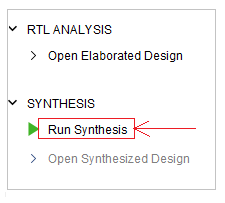
Then start with the synthesis step as shown below.
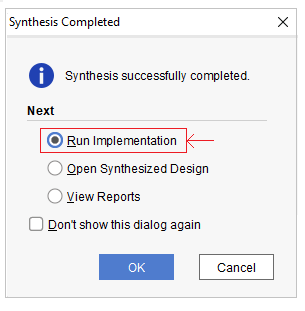
After the synthesis step has been completed, Vivado will prompt you to continue with the implementation step. Choose the option and click OK.
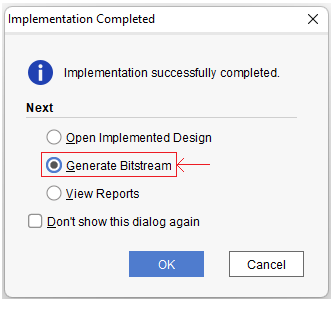
After the implementation step has been completed, Vivado will prompt you to continue with the bitstream generation step. Choose the option and click OK.
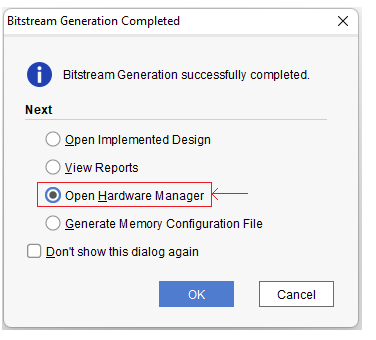
After the bitstream generation step has been completed, Vivado will prompt you to open the Hardware Manager. Choose the option and click OK.
Make sure your board is connected to the PC with the USB cable provided in the Arty development package.
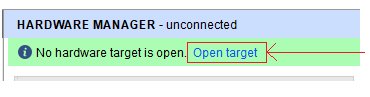
From the Hardware Manager, connect to the target as shown below.
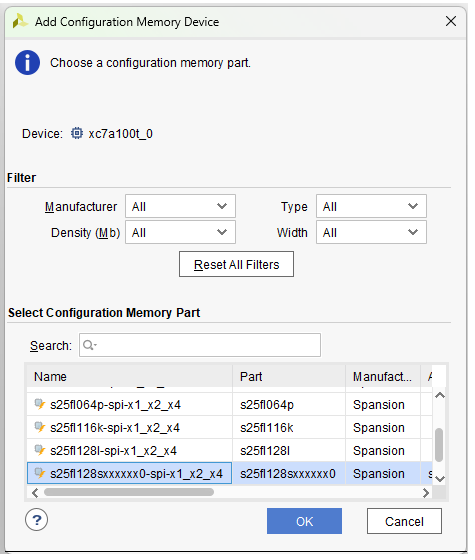
On the left panel, click on the "Add Configuration Memory Device" menu option, then choose to create the flash device as shown below.
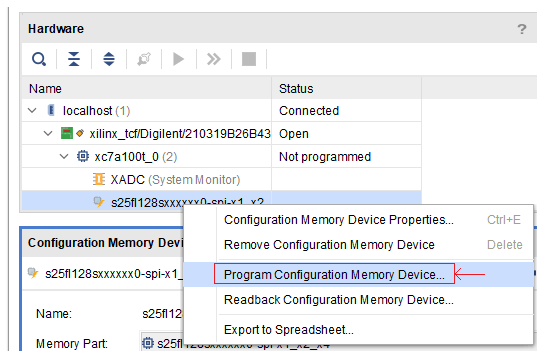
Then program the board as shown below. The image to be flashed is ztachip/HW/examples/GHRD/ztachip.runs/impl_1/main.bin.
If the file is not there, verify that the -bin option is selected under Project Settings/Bitstream, then rerun the bitstream generation step.
That's it. Your board's FPGA will be programmed with the new image automatically after a power reboot.
2.4 Support for Open-Source Toolchains
Open-source toolchains normally support only Verilog.
You can convert the ztachip RTL to Verilog using GHDL.
Install GHDL.
Then convert the RTL code from VHDL to Verilog with the command below.
cd <ztachip folder>/tools/ghdl
./convert.sh
All VHDL code will be converted and combined into a single file, tools/ghdl/soc.v.
As an example of an all-Verilog project, create the Vivado project using create_project2.tcl instead.
3. Running the Demos
3.1 Preparing the Hardware
The reference design requires the following hardware components:
Attach the VGA and camera modules to the Arty A7 board as shown below.
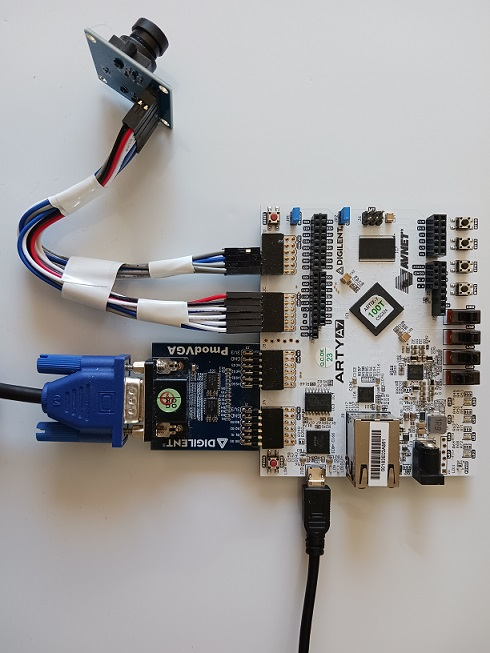
Connect the camera module to the Arty A7 board as shown below.
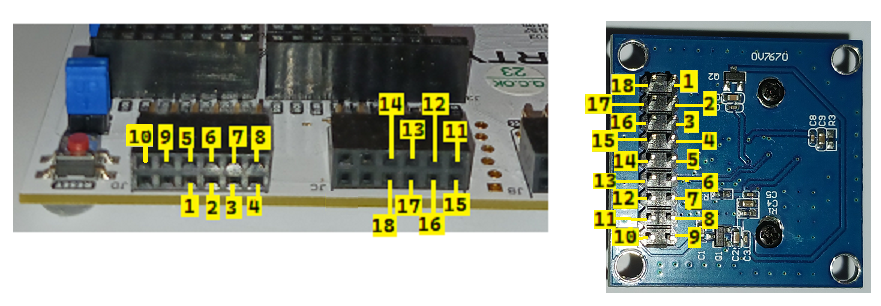
3.2 Open the Serial Port
When running the ztachip MicroPython image, connect to the serial port provided through the Arty A7 USB interface.
Serial-port flow control must be disabled.
For example:
sudo minicom -w -D /dev/ttyUSB1> Note: After connecting to the serial port for the first time, reset the board by pressing the button next to the USB port. Wait for the green LED to turn on. The USB serial interface must be the first device to connect to USB before ztachip.
3.3 Download and Build OpenOCD
OpenOCD provides the JTAG connection used by the GDB debugger.
In this example, the program is loaded onto the board using GDB + JTAG.
Install the required packages:
sudo apt-get install libtool automake libusb-1.0.0-dev \
    texinfo libusb-dev libyaml-dev pkg-config
Download and build OpenOCD:
git clone https://github.com/SpinalHDL/openocd_riscv

cd openocd_riscv

./bootstrap
./configure --enable-ftdi --enable-dummy

make
Copy the ztachip OpenOCD configuration files into the OpenOCD directory:
cp <ztachip installation folder>/tools/openocd/soc_init.cfg .
cp <ztachip installation folder>/tools/openocd/usb_connect.cfg .
cp <ztachip installation folder>/tools/openocd/xilinx-xc7.cfg .
cp <ztachip installation folder>/tools/openocd/jtagspi.cfg .
cp <ztachip installation folder>/tools/openocd/cpu0.yaml .
3.4 Launch OpenOCD
Make sure the green LED below the reset button near the USB connector is on. This indicates that the FPGA has been configured correctly.
Then launch OpenOCD to provide the JTAG connection for GDB:
cd <openocd_riscv installation folder>

sudo src/openocd \
    -f usb_connect.cfg \
    -c 'set MURAX_CPU0_YAML cpu0.yaml' \
    -f soc_init.cfg
Keep OpenOCD running while using GDB.
3.5 Demo Preparation
The demo requires LLM model files to be available.
A TFTP server must be running on the PC Ethernet interface connected to the Arty A7 board.
Configure the PC Ethernet interface with the following IP address:
10.10.10.10Copy the following two model files into the TFTP server's download directory:
These files contain quantized versions of the LLM models.
See the Model Quantization Procedure for instructions on creating the quantized models.
3.6 Upload the Software Image with GDB
3.6.1 Bare-Metal Mode
To run ztachip without MicroPython integration, open another terminal and start GDB with the standalone ztachip software image:
export PATH=/opt/riscv/bin:$PATH

cd <ztachip installation folder>/SW/src

riscv32-unknown-elf-gdb ../build/ztachip.elf
3.6.2 MicroPython Mode (Recommended)
To run ztachip with MicroPython integration, open another terminal and start GDB with the MicroPython firmware image:
export PATH=/opt/riscv/bin:$PATH

cd <MicroPython installation folder>/ports/ztachip_port

riscv32-unknown-elf-gdb ./build/firmware.elf
3.7 Start the Image Transfer
From the GDB prompt, enter:
set pagination off
target remote localhost:3333
set remotetimeout 60
set arch riscv:rv32
monitor reset halt
load
3.8 Run the Program
After the program has been successfully loaded, run it from the GDB prompt:
continueIf running in bare-metal mode, press any button to move between different vision/LLM demos.
If running in MicroPython mode, at the serial console, hit CTRL+E, then paste one of the Python programs from this folder and hit CTRL+D to run. Then hit any button to stop and return to the Python console.
A demonstration showing how to run the demo is available in this video.
3.9 Benchmark
Small LLM inference performance on edge devices is largely constrained by memory bandwidth. In these scenarios, additional compute capability provides limited benefit when processing cores spend most of their time waiting for model data to be transferred from memory.
For this reason, a useful metric for comparing edge LLM implementations is:
Tokens per second (TPS) per GB/s of memory bandwidth
3.9.1 Benchmark Results
The following results compare ztachip running on the Arty platform with the Raspberry Pi 4 and Raspberry Pi 5.
LLM inference performance can be divided into two main components:
- Fixed component: Dominated by matrix multiplication and model-weight transfers. This represents the primary bottleneck and cost for many edge AI applications, where long chat histories and large context windows are less common.
- Variable component: Dominated by attention mechanisms and softmax calculations across the context window. ztachip includes a dedicated FPU compute unit capable of processing context operations at rates that match the available DDR memory-transfer bandwidth, keeping this component primarily memory-bound.
The comparison below focuses on the fixed-cost component by using shorter prompts and questions.
Raspberry Pi benchmark data sourced from arXiv:2511.07425v1.
| Platform | Performance | Memory Bandwidth | Efficiency |
|---|---|---|---|
| Raspberry Pi 4 | 11 TPS | 12 GB/s | 0.92 TPS/(GB/s) |
| Raspberry Pi 5 | 32 TPS | 17 GB/s | 1.88 TPS/(GB/s) |
| ztachip (Arty) | 8 TPS | 1.2 GB/s | 6.70 TPS/(GB/s) |
3.9.2 Conclusion
The Raspberry Pi platforms achieve higher raw token-generation rates because they provide substantially higher overall hardware and memory-bandwidth resources.
However, ztachip achieves significantly higher utilization of the available memory bandwidth:
- 7.2× more efficient than the Raspberry Pi 4
- 3.5× more efficient than the Raspberry Pi 5
This efficiency is particularly important for low-cost and resource-constrained edge AI platforms, where memory bandwidth and power are often more limited than compute capability.
4. Porting ztachip to Other FPGAs, ASICs, and SoCs
ztachip is designed so that the architecture and its applications can be ported to other hardware platforms.
The example provided with this repository is a reference design, implemented on the Arty A7 development kit from Digilent and based on the Xilinx Artix-7 FPGA. However, ztachip — both the software and the hardware stack — can be ported to any FPGA, ASIC or SoC platform by following the procedure described below.
4.1 Porting the Hardware Stack
- Update HW/src/config.vhd to match your platform or FPGA capabilities, such as resource availability, memory block size and SDRAM bus width.
- Compile all files under HW/src. They are generic VHDL code without any special primitives, so they are ready to be ported to any FPGA or ASIC.
- Have a version of the wrapper library for your FPGA or ASIC. There are 6 components that you need to map to your FPGA or ASIC library. They are mostly basic memory block primitives, so any FPGA or ASIC toolchain will have them. There is also a wrapper version for simulation that you can reference for the expected behaviour.
- Reference HW/examples/GHRD/main.v. This is the top component of the reference design. Base the top component of your own design on this example.
4.2 Porting the Software Stack
- Update
NUM_PCOREin SW/base/zta.h to be 8 for the large version and 4 for the small version. This must be the same value aspid_gen_max_cconfigured in HW/src/config.vhd. - Update the linker file SW/linker.ld to match your SoC's DDR memory size. The important parameters are
RAM,_heap_sizeand_stack_size. - Update the boot loader SW/base/crt.S if your SoC has any special boot-loading method. In the provided example, the boot loader is simple, since it expects code and data to be loaded by JTAG before execution begins.
- Your SoC may have different peripherals, with new drivers to be implemented. All peripheral drivers are implemented in SW/src/soc.cpp.
- Refer here if you would like to use a different RISC-V implementation. ztachip uses VexRiscv by default.
5. Running ztachip in Simulation
ztachip can also be run under an RTL simulator, without any board. The example test programs exercise the tensor processor and report their results by blinking a simulated LED.
5.1 Build the Simulation Image
First, build the example test program used for simulation.
The example test applications are located under:
SW/apps/test
SW/sim
Build the simulation image:
export PATH=/opt/riscv/bin:$PATH

cd ztachip

cd SW/compiler
make clean all

cd ..
make clean all -f makefile.kernels
make clean all -f makefile.sim
The generated simulation memory image is:
<ztachip>/SW/build/ztachip_sim.hexCopy this file into the directory where you run your simulator.
The image will be loaded into the simulated memory.
5.2 Compile and Run the RTL
Compile the RTL sources from the following directories:
HW/src
HW/platform/simulation
HW/simulation
HW/riscv/sim
The top-level simulation component is:
HW/simulation/main.vhdProvide a clock to:
main:clkThe following output should blink each time a test successfully passes:
main:led_out